How to update LightPupil LMS
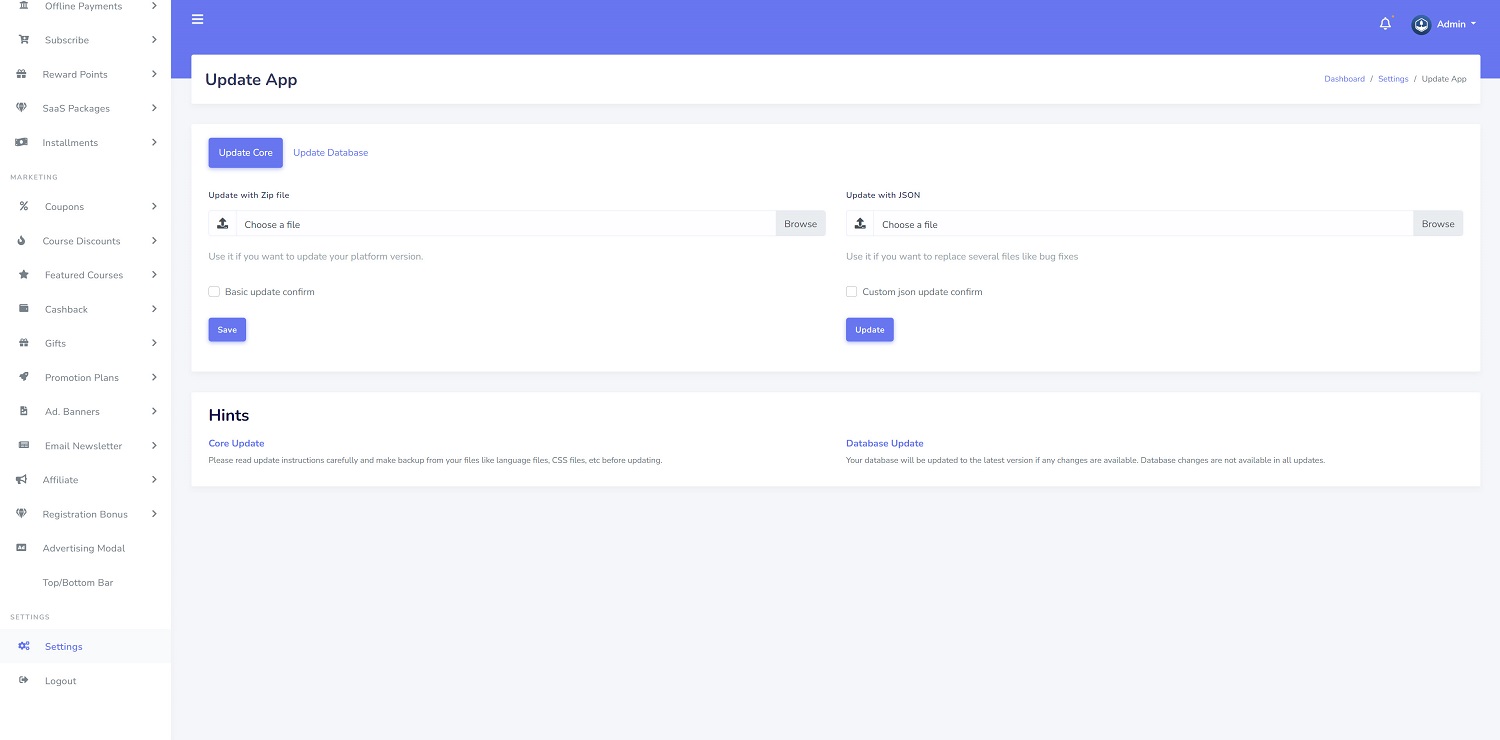
We added an auto-update feature to v1.7 so you can update your system from the admin panel if you are using v1.7 or above.
If you are using elder versions (1.4, 1.5, 1.6), you need to follow the update process documentation that we included inside the “Update” folder and update your platform to v1.7.
Update FAQ
I’m using version 1.6. Can I update the platform from the admin panel?
No, we added the auto-update feature to v1.7, and it means if you want to update your platform to v1.7, you need to update it manually.
Once you update your platform to 1.7, you can perform updates from the admin panel.
How can I check my platform's current version?
Please go to the admin panel and log in as admin. You can check the version code from the top navigation bar by clicking on the “Info” icon.
You can also check it from the “Admin Panel/Settings/ Update” menu.
How can I check LightPupil LMS updates?
You need to go to the product page on LightPupil and check the change log. It is at the bottom of the product page.
Is it necessary to back up my files and database?
We suggest making backups before updating the system to avoid unpredictable problems. If you haven't translated the platform or haven’t changed the code, you can update the script without a backup, but we suggest creating backups in every situation.
Which files are important to backup them?
-Translations
If you translated the platform or changed the original translations, please make a backup from your language folder. You can find language files inside the “resources/lang” folder.
Note: If you translated the platform to your native language and want to sync your translations with LightPupil LMS translations after each update, please go to the translation documentation. You will find instructions to sync your language files. Your translations won't be missed.
-Changes/Customizations
If you customized project files, you need to make a backup of them.
Note: We suggest creating a full backup of your files by copying the public_html folder files to another folder.
What is the “Update with JSON” option functionality?
You might contact support and get minor bug fixes. We might give a zip file to you, including bug fixes and ask you to use this input to apply fixes. You can select the file and click on the update button so changes will be applied.